JEAF Modeling Assistant
JEAF Modeling Assistant is a plugin for MagicDraw UML that makes everyday modeling work faster:
- Teamwork Cloud: create branches from trunk in one step, keep an overview of the branches of a project and reopen your recent projects at startup.
- JEAF Generator: generate code directly from MagicDraw, without committing or exporting the model manually, see the results of JEAF Generator’s model checks in a table and keep track of deprecations, breaking changes and ToDos in the model.
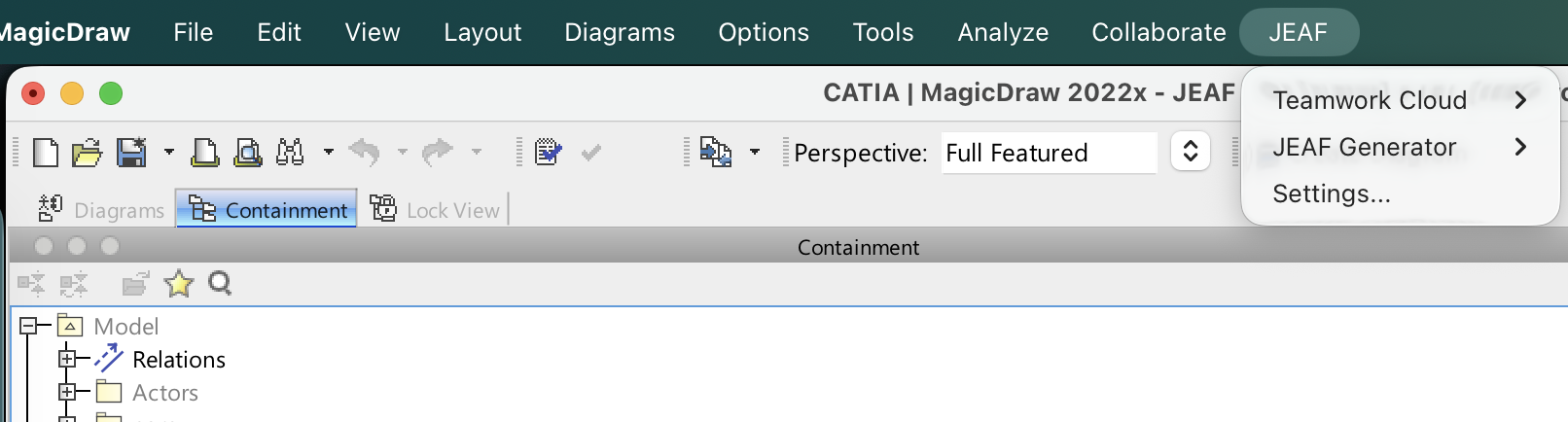
All functions are available in the menu JEAF of MagicDraw’s main menu bar, directly after the menu Collaborate.
Requirements
| Aspect | Requirement |
|---|---|
| MagicDraw | 2022x, 2024x or 2026x (also as MagicDraw Reader, see below) |
| Operating system | macOS or Windows |
| Teamwork Cloud functions | Access to a Teamwork Cloud server |
| JEAF Generator functions | Maven, a JDK and the MagicDraw plugin “Eclipse UML2 (v2.x) XMI Export/Import” (part of MagicDraw) |
| License | A license of anaptecs for the functions you want to use (see License) |
Installation
JEAF Modeling Assistant is installed with MagicDraw’s Resource/Plugin Manager:
- In MagicDraw, open
Help→Resource/Plugin Manager. - Add the resource location (button “Add URL…”):
https://www.jeaf-generator.io/distribution/jeaf-modeling-assistant/ - Select JEAF Modeling Assistant (group “Plugins (commercial)”, provider anaptecs GmbH) and install it.
- Restart MagicDraw.
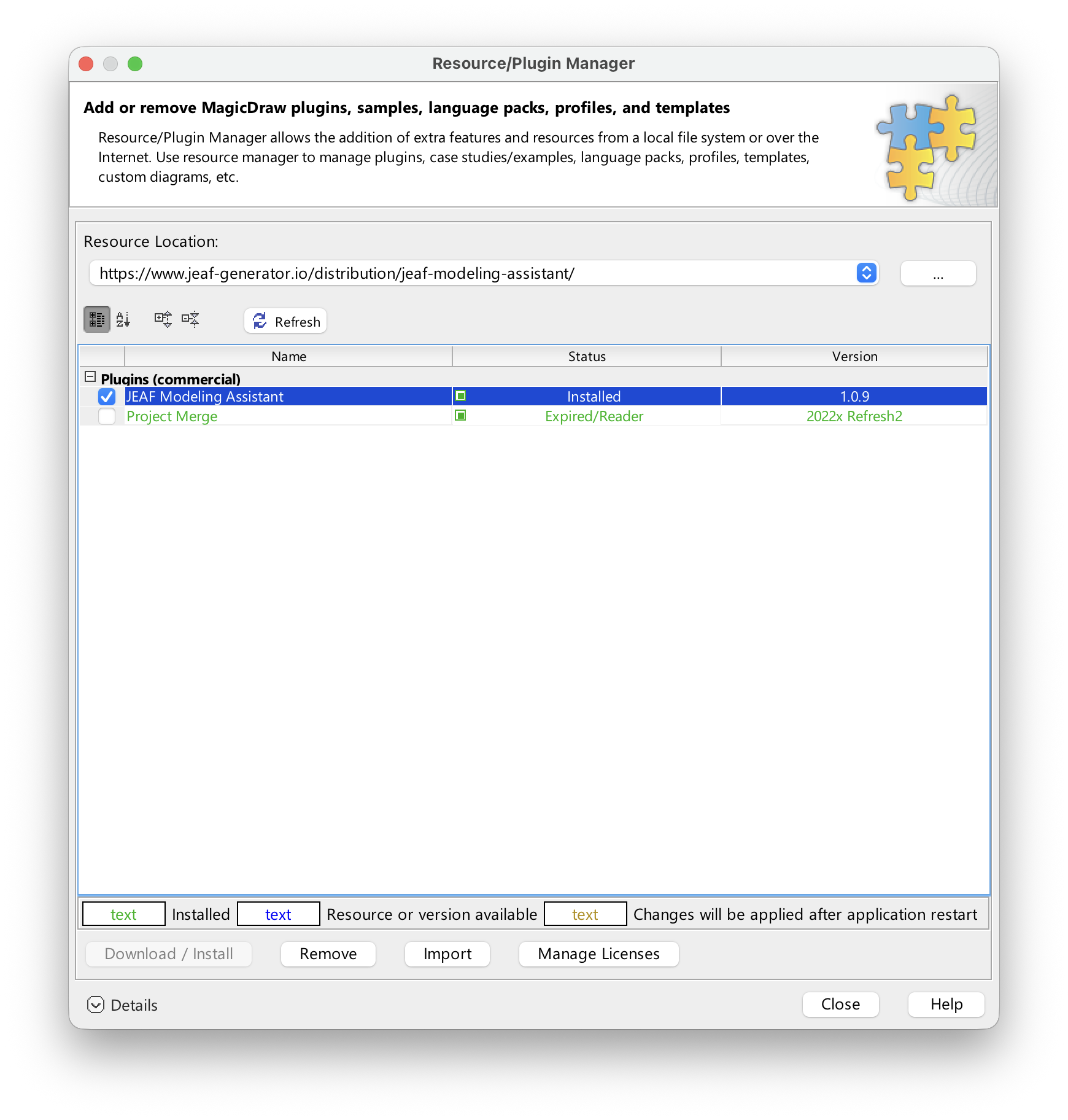
The resource location always offers the latest version. Alternatively, a distribution file jeaf-modeling-assistant-<version>.rdzip can be imported with the button “Import” of the Resource/Plugin Manager.
License
The functions are licensed per group: Teamwork Cloud and JEAF Generator. Licenses are issued by anaptecs as license file (*.lic) for an organization or a person. To add a license:
- Open
JEAF→Settings..., tab License. - Click Add License File… and select the license file.
The tab shows which groups are licensed and all license keys with their status and expiry date. Organization licenses are valid if the organization matches the licensee of MagicDraw (“Registered to” in MagicDraw’s About dialog). Licenses can be ordered at jeaf@anaptecs.de.
Updates
On every start, JEAF Modeling Assistant checks in the background whether a newer version is available. If so, MagicDraw shows a notification, for example “JEAF Modeling Assistant 1.0.10 is available (installed: 1.0.9).”, with these options:
- Install… downloads the new version and installs it into MagicDraw. Afterwards a second notification offers to exit MagicDraw; the new version is active after the next start.
- Skip this version doesn’t notify about this version anymore. Later versions are notified again.
- Later shows the notification again at the next start.
The check can be switched off in JEAF → Settings..., tab General. Updates can always be installed manually in the Resource/Plugin Manager as well: the new version replaces the installed one at the next start, there’s no need to uninstall the old version.
Features
Create Branch from trunk
JEAF → Teamwork Cloud → Create Branch from trunk... (Ctrl+Shift+Y on Windows, ⌘⇧Y on macOS) creates a new branch of the Teamwork Cloud project that is open in MagicDraw. You only enter the name of the branch. The branch is always created from the latest version of trunk, independent of the branch you’re working on, and is opened in addition to the current project.
Creating branches requires the Teamwork Cloud permission “Administer Resources” for the project.
Branches View
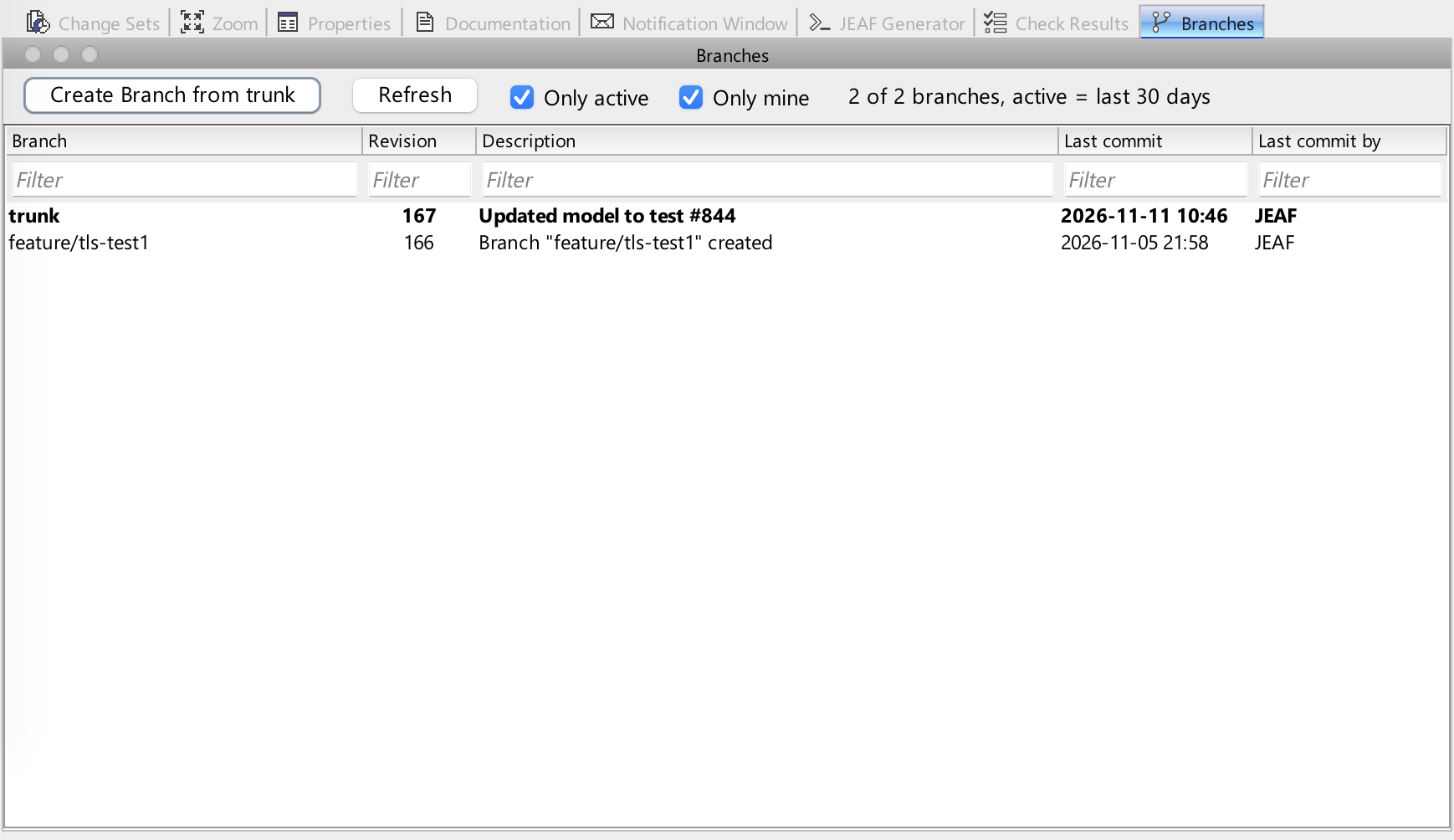
JEAF → Teamwork Cloud → Open Branches View opens the window Branches with all branches of the current Teamwork Cloud project:
- Branch, latest revision, description or latest commit message, date and author of the latest commit, creation date and creator.
- Filters Only active (branches created or changed within the last 30 days; configurable in the settings) and Only mine (branches you created or committed to), a text filter per column and sorting.
- Context menu Open Branch opens a branch in addition to the current project (not offered for the branch you’re working on), Show History shows its history.
- Context menu Show Branch Changes (all branches except
trunk, also branches of other users, for example for reviews) shows all changes committed on the branch since it was created, in MagicDraw’s difference viewer. Uncommitted local changes aren’t included. For the comparison, the latest version of the branch is opened read-only and closed again when you close the difference viewer. - Button Create Branch from trunk creates a new branch as described above.
Open Recent Projects
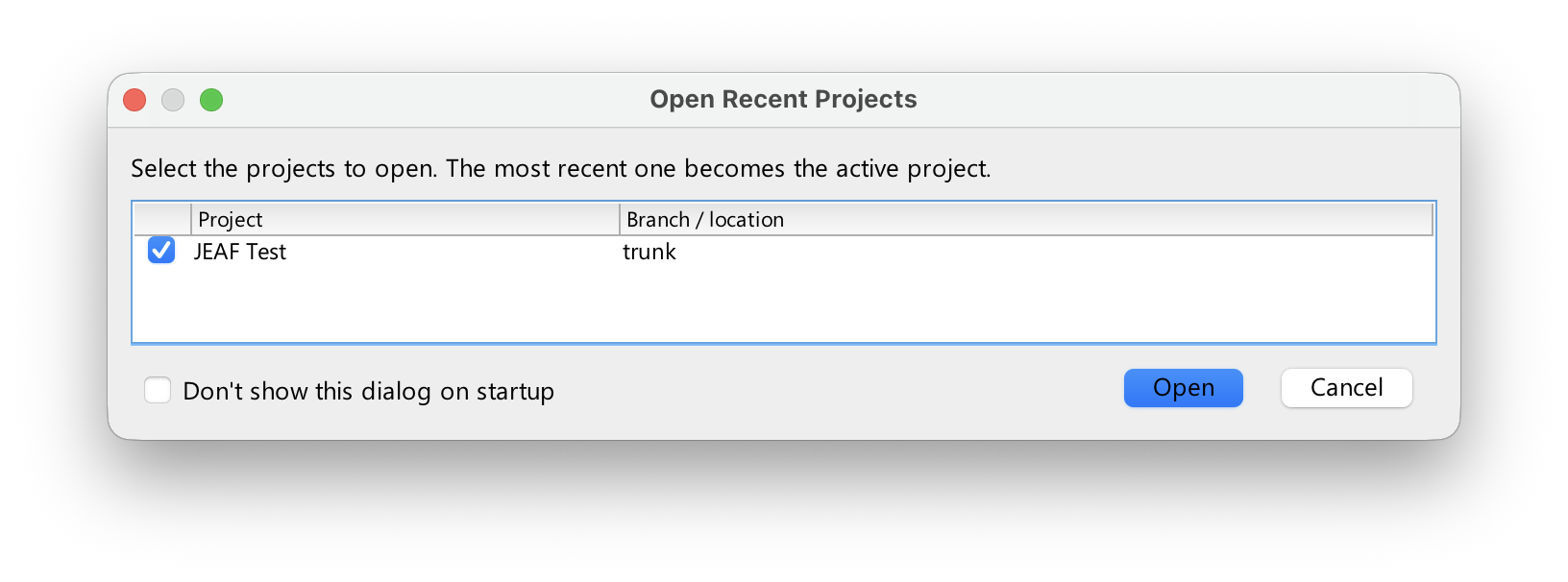
When MagicDraw starts, the dialog Open Recent Projects lists your recently used projects. Select the projects you want to work on and they’re opened one after another; the most recent one becomes the active project.
- Teamwork Cloud projects are listed with the branch, one entry per branch, and always open the latest revision.
- Only the Teamwork Cloud projects that were opened with the current Teamwork Cloud user are shown, so different accounts on the same machine keep separate lists.
- The projects you opened the last time are preselected.
The dialog can be switched off with “Don’t show this dialog on startup” or in the settings (tab General).
Run JEAF Generator
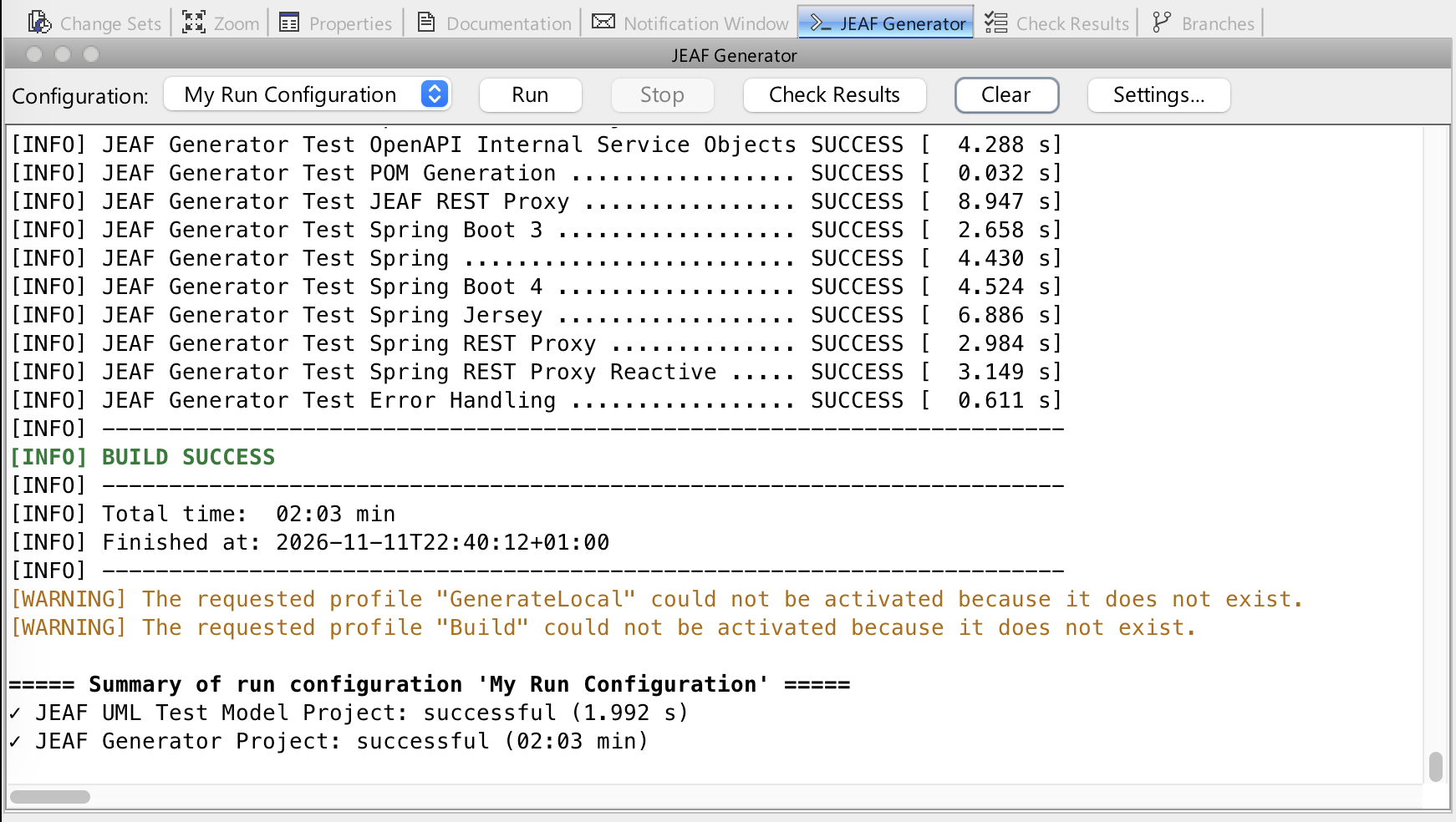
JEAF → JEAF Generator → Run JEAF Generator (Ctrl+Shift+X on Windows, ⌘⇧X on macOS) or the button Run in the window JEAF Generator generates code from the model that is open in MagicDraw:
- The model is exported as Eclipse UML2 (v2.x) XMI into a directory of your choice. The export contains the current state of the model, including changes that aren’t committed yet.
- The Maven projects of the selected run configuration are built one after another, in the defined order. A failed build stops the run, as later builds usually depend on earlier ones.
- The Maven output is shown in the window JEAF Generator, followed by a summary with the duration of the XMI export, the result and duration per Maven project and the total duration of the run (green if all builds were successful, otherwise red).
A run configuration groups the Maven projects that have to be built to bring a model change to the code, for example first the API project and then the implementation that uses it. You select the run configuration in the window JEAF Generator left of the button Run. The buttons of the window (Run, Stop, Check Results, Clear and Settings) are shown as icons; their tooltip shows the name. To open the window without starting a run, for example to select another run configuration first, use JEAF → JEAF Generator → Open JEAF Generator View.
Check Results
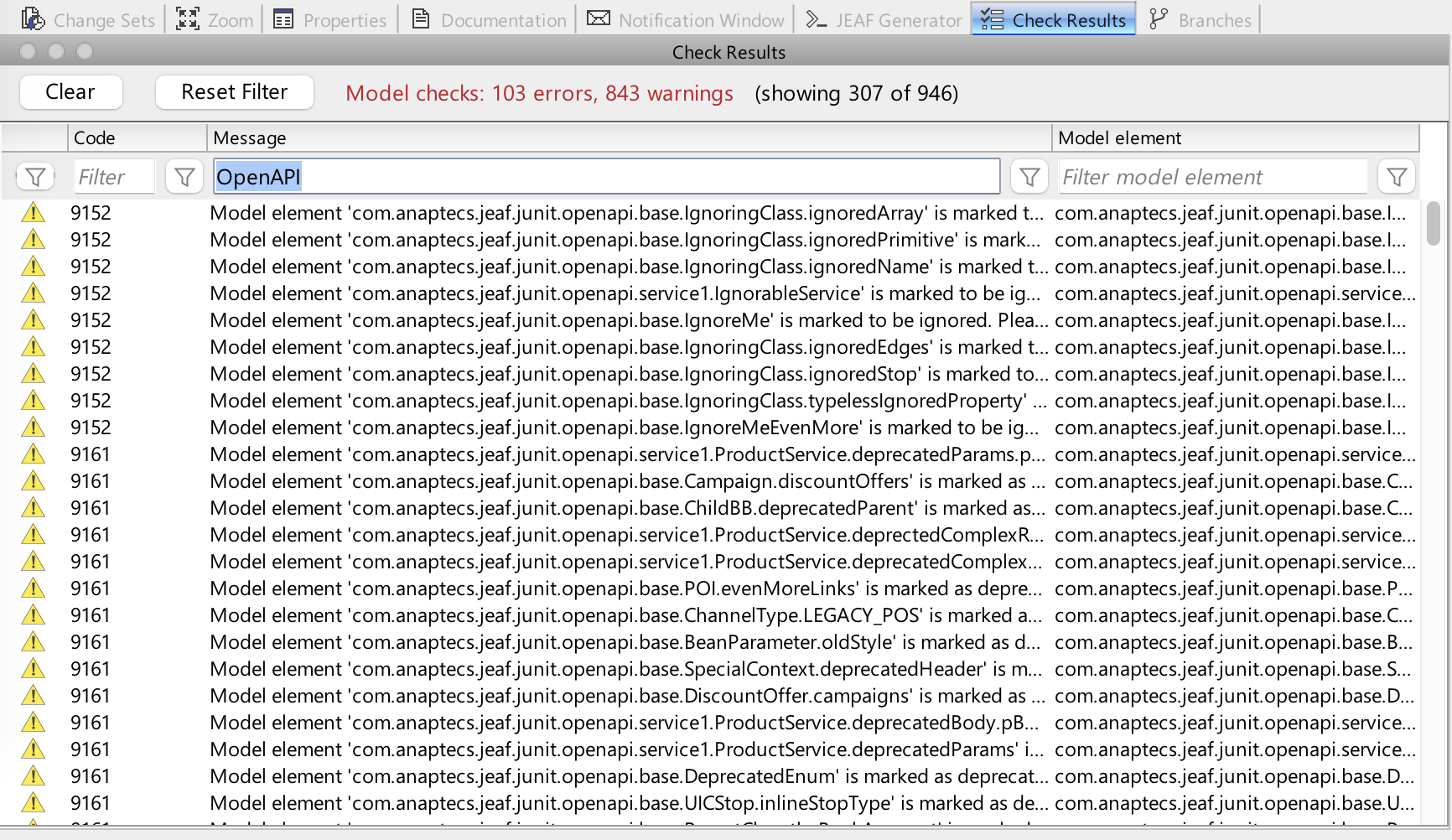
JEAF Generator checks the UML model and reports errors and warnings. The window Check Results (JEAF → JEAF Generator → Open Check Results View) shows them as a table, collected from all builds of a run and without duplicates:
- Severity, check code, message and the affected model element.
- Filters per column, including a package tree for the model elements and text conditions, as you know them from spreadsheets. Excluded values are remembered per project.
- Context menu Show Details or a double-click on a row opens a dialog with the check result and the affected model element.
- Context menu Select in Containment Tree selects the affected model element in MagicDraw’s containment tree, Usage in Diagrams lists the diagrams it’s shown in (see below).
Model Lifecycle
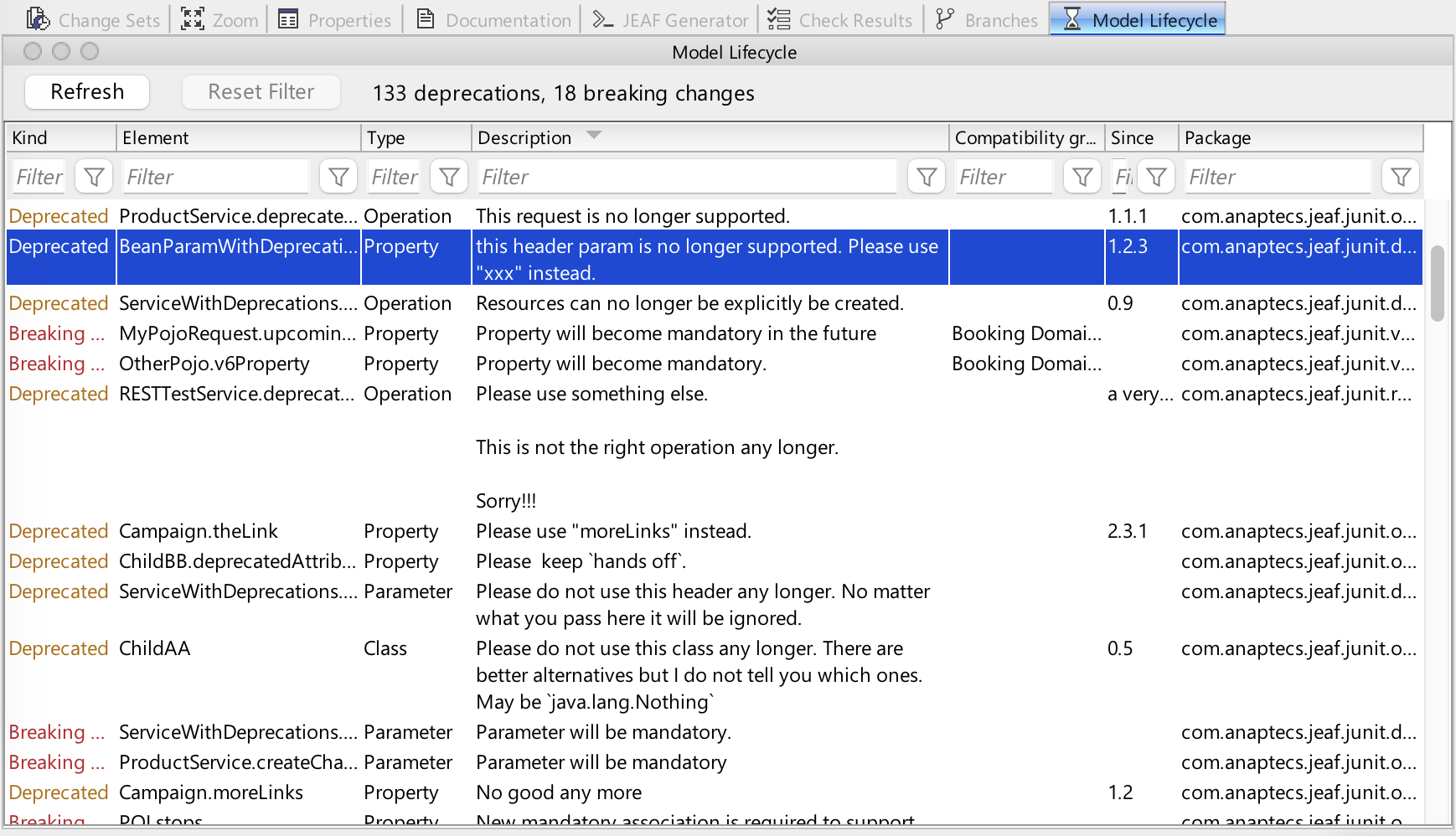
Model elements can be marked as deprecated (stereotype «JEAFDeprecated») or as breaking change («BreakingChange»). The window Model Lifecycle (JEAF → JEAF Generator → Open Model Lifecycle View) lists all of them in the project that is open in MagicDraw, for example to see what has to be cleaned up before the next major version:
- Kind (deprecation or breaking change), element, type, description, compatibility group, version since when the marking applies, and package. Elements of used projects aren’t listed.
- Filters per column, as in the window Check Results. The filter settings are remembered per project.
- Button Refresh reads the model again; the list isn’t updated automatically while you change the model.
- Context menu Show Details or a double-click on a row opens a dialog with all details of the element. The dialog stays open while you continue modeling, for example while you remove a breaking change.
- Context menu Select in Containment Tree selects the element in MagicDraw’s containment tree, Usage in Diagrams lists the diagrams it’s shown in (see below).
ToDo
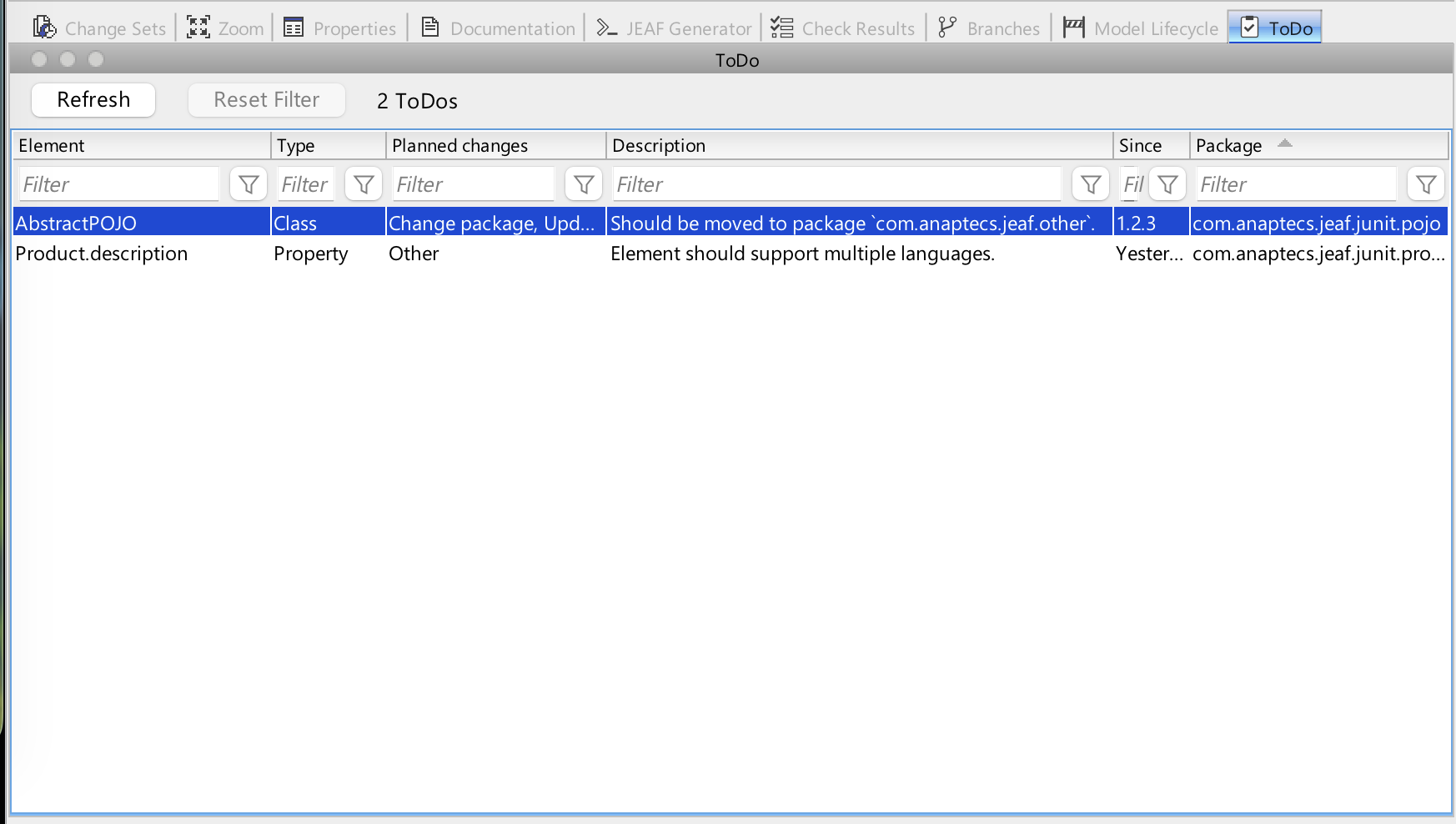
Model elements for which business or technical changes are planned can be marked with the stereotype «ToDo». The window ToDo (JEAF → JEAF Generator → Open ToDo View) lists all of them in the project that is open in MagicDraw:
- Element, type, planned changes (for example “Change element to mandatory, Rename element”), description, version since when the ToDo exists, and package. Elements of used projects aren’t listed.
- Filters per column, as in the window Model Lifecycle. The filter of the planned changes lists each planned change on its own; a ToDo is shown if at least one of its planned changes is selected.
- Button Refresh, context menu Show Details (also double-click), Select in Containment Tree and Usage in Diagrams, as in the window Model Lifecycle.
Working with the listed model elements
The windows Check Results, Model Lifecycle and ToDo offer the same functions for the model element of a row:
- Show Details (context menu or double-click) opens a dialog with all values of the row. The dialog stays open while you continue modeling, and several dialogs can be open at the same time. Its buttons Select in Containment Tree and Usage in Diagrams work like the context menu.
- Usage in Diagrams works like MagicDraw’s
Go To→Usage in Diagrams: it lists the diagrams that show a symbol of the element, and in the submenu Other Diagrams the diagrams that use it otherwise, for example tables. A click opens the diagram and selects the symbols of the element. - Model elements are shown with a short name: the name of the element, preceded by its owners up to the package, for example
Customer.name. Operations end with(...), for exampleProductService.createChannel(...), parameters are shown in the brackets of their operation, for exampleProductService.createChannel(pChannel). The package is shown in a column of its own, in Java notation and, like in JEAF Generator, without a top-level package with «ModelLibrary».
JEAF Generator settings
JEAF → Settings..., tab JEAF Generator, or the button Settings… in the window JEAF Generator:
- General: the XMI export directory of the project (MagicDraw path variables like
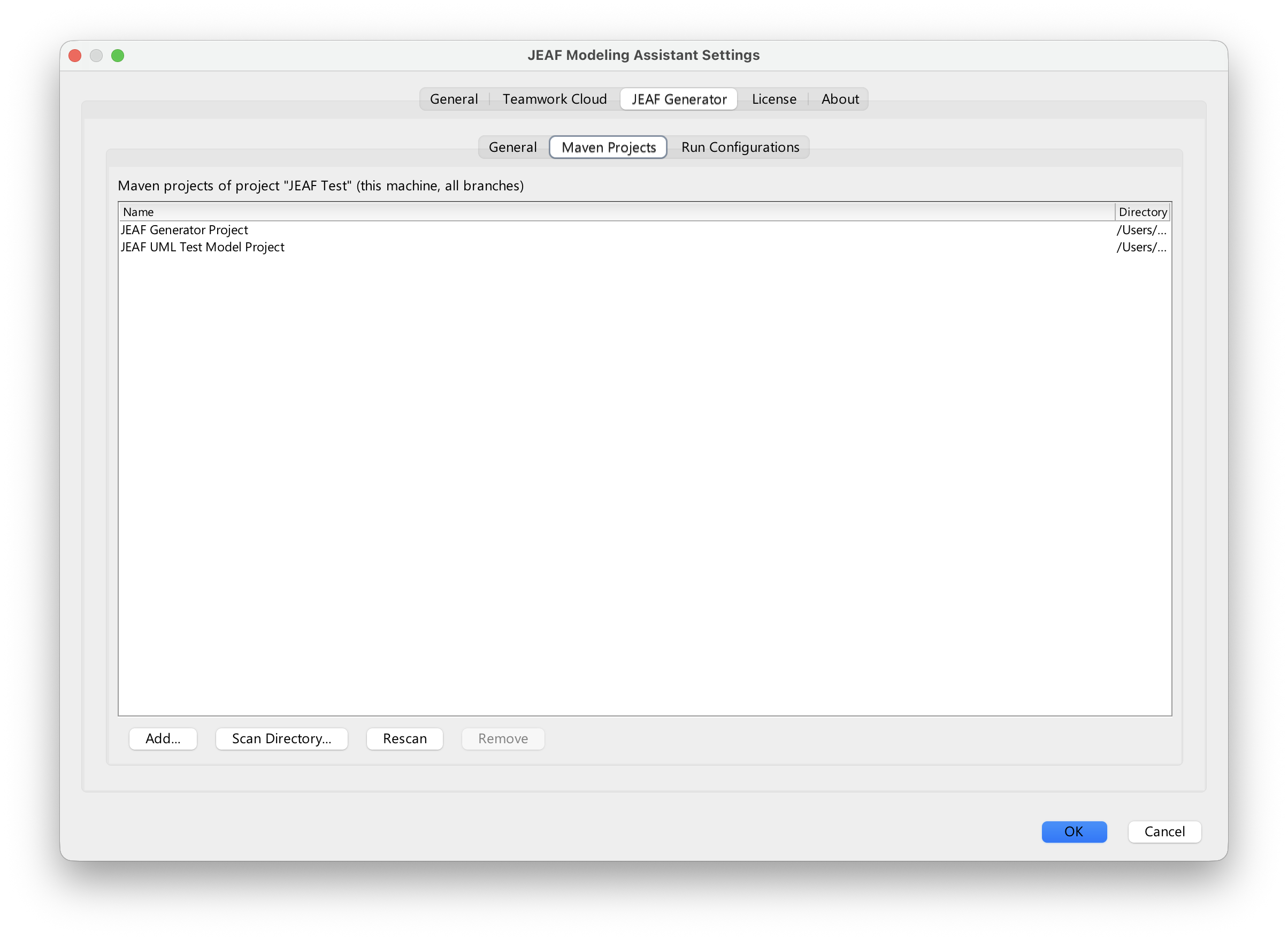
<VARIABLE_NAME>can be used), the Maven executable andJAVA_HOME, and a button Check that verifies that Java, Maven, the export directory and all Maven projects can be used. - Maven Projects: the Maven projects of the project. Add them one by one, or let JEAF Modeling Assistant scan a directory for all Maven projects in it. Rescan updates the list later, for example after new projects were checked out.
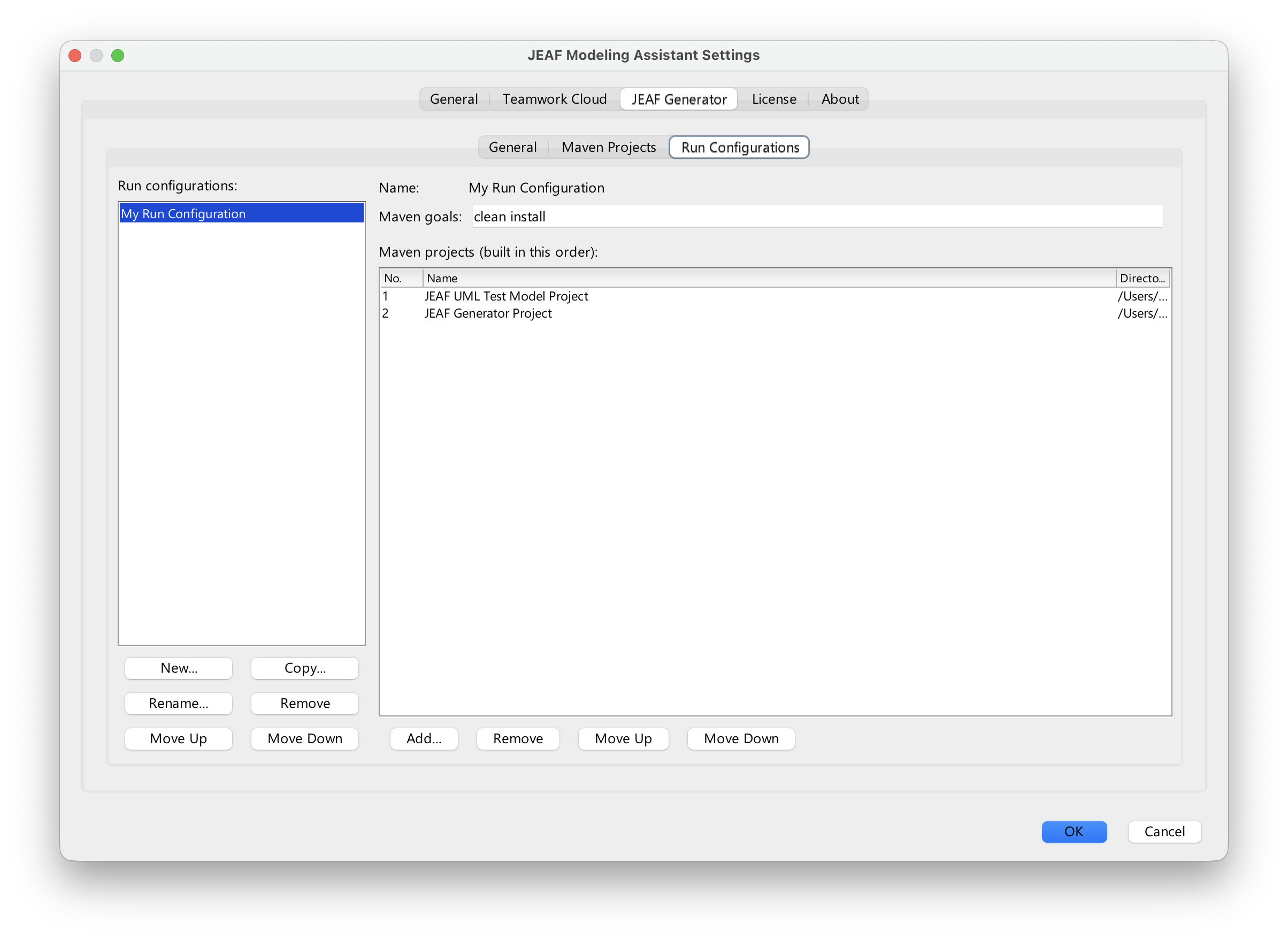
- Run Configurations: name, Maven goals (default
clean install) and the Maven projects of each run configuration in build order.
When Maven projects are selected (after a scan or for a run configuration), the columns Name and Directory can be filtered like the other tables, the directories also as tree.
The settings are stored on your machine only and apply to all branches of a project.
MagicDraw environment check
At startup, JEAF Modeling Assistant checks whether MagicDraw runs in a suitable environment: Java version, JDK architecture (no emulation, for example under Rosetta), maximum heap size and garbage collector. While you work, it also watches the memory usage. If something isn’t optimal, a notification explains what to change and where. All results are shown in JEAF → Settings..., tab General.
MagicDraw Reader
JEAF Modeling Assistant can also be used with MagicDraw Reader. All Teamwork Cloud functions are available there. JEAF Generator can’t be run, as MagicDraw Reader can’t export the model.